
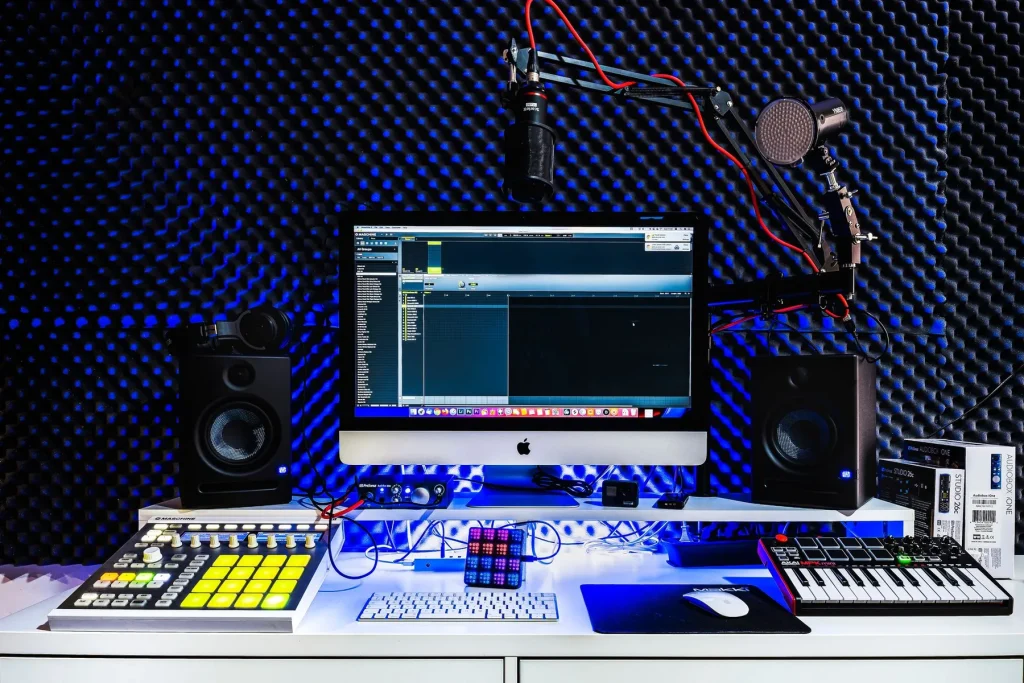
Market overview: today, a wide range of options lets you start making music at home without a large budget. There are DAWs you can install on Windows, macOS and Linux, mobile apps and browser-based solutions.
This guide clarifies the choice according to your needs: audio editing, live performance, notation or full production. Audacity, GarageBand, LMMS, Ardour, BandLab and Caustic serve different purposes.
There are local and cloud-based solutions. Local software supports offline work and offers stability. Cloud tools make collaboration and access from multiple devices easier.
What to expect: a free version is often enough for ambitious projects, but some features and plugins remain locked. This guide helps users and musicians decide what to install, what to try and which courses to take if needed.
Why choose free music production software today?
Today, many free tools let you compose and produce without an initial investment. Thanks to them, recording, editing and mixing are available on an ordinary computer or smartphone.
Options include virtual instruments, effects and loop libraries. Their quality continues to improve and often rivals paid offerings for everyday use.
For beginners, interfaces, templates and loops make it possible to create quickly and learn by doing. Experienced musicians can use them to make demos, prepare productions and work together remotely.
| Benefit | Use | Example |
|---|---|---|
| Immediate access | Try it for free | BandLab, GarageBand |
| Features | Recording, editing, mixing | LMMS, Audacity |
| Mobility | Create anywhere | Caustic, SunVox |
Be aware that some versions restrict access to advanced plugins. To expand your setup, you can add extensions or upgrade. To improve quickly, follow courses and official or community tutorials.
How to choose a free DAW: essential criteria
Making the right choice starts with compatibility. Check your operating system first: Audacity, LMMS, Ardour and Waveform Free run on Windows, macOS and Linux. BandLab, Soundation and Ohm Studio run in a browser. On mobile, Caustic 3 and SunVox are options, while GarageBand remains a leading choice on macOS and iOS.
Next, assess the essential features. Look for multitrack recording, audio and MIDI editing, mixing, and built-in virtual instruments and effects.

The interface should be clear: a timeline for arranging or a loop-based mode for live work. Try the workflow yourself. Audacity handles simple editing; GarageBand makes it easy to get started; Ardour and LMMS offer more comprehensive open-source tools.
- Check the import and export features and supported formats.
- Check stability, latency, and processor and memory use.
- Plan for changing needs with plugins and instrument packs.
Finally, trying a demo helps you discover the workflow and check whether it meets users’ needs.
The best free music production software
Here is a practical selection of free tools for developing your ideas, from basic recording to advanced mixing. It covers computers and mobile devices, with options for beginners and serious projects.
Audacity — simple editing and recording
Audacity runs on Windows, macOS and Linux. It excels at quick edits, voice recording and file conversion. Its effects are basic but useful for quick edits.
GarageBand — intuitive within the Apple ecosystem
On Mac and iOS, GarageBand offers a clear interface, many instruments and virtual instruments. Ideal for a beginner, it supports direct recording and quick demo creation.
Cakewalk, LMMS, Ardour and more
Cakewalk by BandLab provides professional tools on Windows, with many features for mixing.
LMMS focuses on MIDI sequencing and beatmaking, with open-source loops and effects. It runs on several operating systems and fits well into a computer-based workflow.
Ardour remains a robust open-source option for composing, recording and mixing.
Waveform Free, Studio One Prime, Pro Tools First, Ableton and Caustic
Waveform Free is lightweight, supports plugins and includes essential effects.
Studio One Prime focuses its workflow on mixing and creating, despite some plugin limitations.
Pro Tools First is an introduction to a studio standard, useful for managing tracks and developing your skills.
Ableton Live in its trial version remains a leading choice for electronic music and Session View.
Caustic 3 turns a smartphone into a drum machine and synthesizer for sketching ideas on the move.
For a comparison, see the best music production software.
Create and collaborate online without installing anything
Working in the cloud changes how you create: there is no need to install anything to start a project. Your files stay synchronized and accessible online from any device.

BandLab — cloud production and a social network
BandLab runs in a browser and offers virtual instruments, loops and an interface designed for a quick start. Its free version supports synchronization between web and mobile, as well as real-time collaboration.
Soundation — browser-based creation with AI
Soundation requires no installation and speeds up demo creation with AI tools and a large sample library. Simultaneous editing makes it easier for users in different locations to work together.
Ohm Studio — organized collaborative sessions
Ohm Studio focuses on shared sessions. It is useful for composing, arranging and mixing with others without exchanging large files.
Advantages: direct access, a simplified web interface and automatic saving. Limitations: reliance on an internet connection and possible latency. For a flexible workflow, make your first demo online and finish it locally, or stay entirely in the cloud.
To try an online studio quickly, use a web studio and take courses if needed.
Produce on mobile: make music anywhere, anytime
Turning a smartphone into a small studio lets you record an idea as soon as it comes to you. Mobile tools help you sketch a beat, capture a melody and export everything to a computer DAW.

Caustic 3 — a pocket-sized sequencer, drum machines and effects
Caustic 3 offers synthesizers, drum machines, samples and effects. Its intuitive sequencer makes it easy to create complete multitrack demos.
GarageBand iOS — direct recording and ready-made loops
GarageBand iOS supports direct recording through a microphone or audio interface. Apple’s loops and virtual instruments help you make a song demo quickly.
SunVox — powerful and versatile on Android and iOS
SunVox offers an advanced modular architecture. It suits users who want to explore synthesis and sophisticated arrangements on mobile.
Advantages: instant startup, portability and time savings. These apps let you capture inspiration without waiting and work whenever you like.
Limitations: a small screen makes precise mixing less convenient. To preserve every detail, export separate audio tracks or MIDI files before continuing on a computer.
- Organize your projects with clear names, folders and exports.
- Export separate audio tracks and MIDI files to continue editing in a more comprehensive DAW.
- Even for beginners, these versions are useful for daily practice.
Write sheet music and tablature for free
For polished scores, MuseScore remains a comprehensive, accessible option.
MuseScore is open source and runs on Windows, macOS and Linux. Its intuitive editing interface lets you create clear scores and tablature.
MuseScore and virtual-instrument playback
Built-in playback uses virtual instruments so you can hear the harmony and orchestration before recording. This helps you check balance and expression.
Export audio and enter notes with a MIDI keyboard
MIDI support simplifies entering notes, velocities and articulations with a keyboard. MIDI or audio export produces audio tracks ready to import into a DAW.
“Write, listen, export: a simple process for turning a score into a demo.”
| Use | Feature | Benefit |
|---|---|---|
| Notation | Scores and tablature | Precise editing and easy transposition |
| Preview | Virtual instruments | Check orchestration before recording |
| Export | MIDI, WAV, MP3 | Import directly into a DAW for the final mix |
- Beginner: ideal for lessons, choirs and writing exercises.
- Arranger: polished notation and a full range of symbols.
- Suggested workflow: write in MuseScore, export as MIDI or audio, then finish the sound in a DAW or with this practical guide.
Virtual instruments, effects and plugins: expand your setup
To enrich a home studio, plugins turn a basic setup into a broad sound palette. They add instruments and processing without replacing your main software.

Common formats: VST, VSTi and Audio Unit (AU)
VST mainly covers effects. VSTi refers to virtual instruments. AU is the format of the Apple ecosystem, favored by GarageBand and Logic.
| Format | Type | Platform | Typical compatibility |
|---|---|---|---|
| VST and VSTi | Effects and instruments | Windows, macOS | Supported by most DAWs, subject to some limitations |
| Audio Unit (AU) | Effects and instruments | macOS | Favored by GarageBand and Logic |
| Limited formats | – | – | Studio One Prime may restrict the use of third-party plugins |
Add third-party plugins and check compatibility
Third-party plugins bring new sound textures and specialized processing. They improve the workflow and the quality of demos.
Practical tip: install a few stable plugins that use few resources. Check plugin folders, apply updates and test each plugin in a small project before using it regularly.
For a good starting point, consult this guide, then move gradually from learning the included instruments to adding selected packs.
Beginners and intermediate users: which tool for which task?
To get started, first decide whether you want to record a voice, build a beat or mix a multitrack project.
First steps in recording, editing and mixing audio tracks
Audacity and GarageBand are excellent for initial voice or guitar recordings and simple edits.
They are easy to learn and provide enough tools to assemble demos.
For a first structured mix, try Studio One Prime or Pro Tools First if you want to learn studio workflows.
Beatmaking and electronic music with sequencing and loops
LMMS and the trial version of Ableton excel at MIDI sequencing and loop-based work. Their interfaces encourage quick creation and the use of loops.
For more ambitious projects, Ardour handles multitrack recording well and offers reliable mixing.
“Try two or three well-chosen tools, take short courses and improve step by step.”
- Choose according to track count, routing options and your effects needs.
- If collaboration matters most, choose BandLab or Soundation.
- Be practical: the interface that suits you best is often the best choice.
Paid alternatives and trial versions worth knowing
Before buying, try several versions to assess the interface and workflow. Trials let you see whether a program meets your production needs.
FL Studio — a full trial and loop-based work
FL Studio offers a trial version that lets you evaluate its loop-based workflow. With its many instruments and effects, you can quickly test its sound palette for music production.
Reaper — lightweight, customizable and affordable
Reaper uses little processor power and memory. It is highly customizable, affordable and suitable for modest computers for recording and mixing.
Cubase, Logic Pro, Bitwig — professional ecosystems
Cubase, Logic Pro and Bitwig offer many professional features: mixers, instrument libraries and arranging tools. Choose according to your operating system and preferred workflow.
The paid version of Pro Tools remains a studio standard for advanced editing and cloud collaboration. Use trials, calculate the total cost of extensions, libraries and updates, and remember that mastering one tool is better than endlessly testing tools without producing anything.
Conclusion
To make quick progress in music creation, take a clear approach.
Define your goal first, then choose one or two programs and tools to produce your first track. Sketch, arrange, mix and export; repeat the process to improve.
Essential features—recording, editing, mixing, effects and virtual instruments—are often available at no initial cost. Add a few stable plugins, but avoid excess that slows your work.
Progress mainly comes from regular practice and targeted courses. Try several versions on the same project and keep the tool that saves you time and inspires your creativity.