
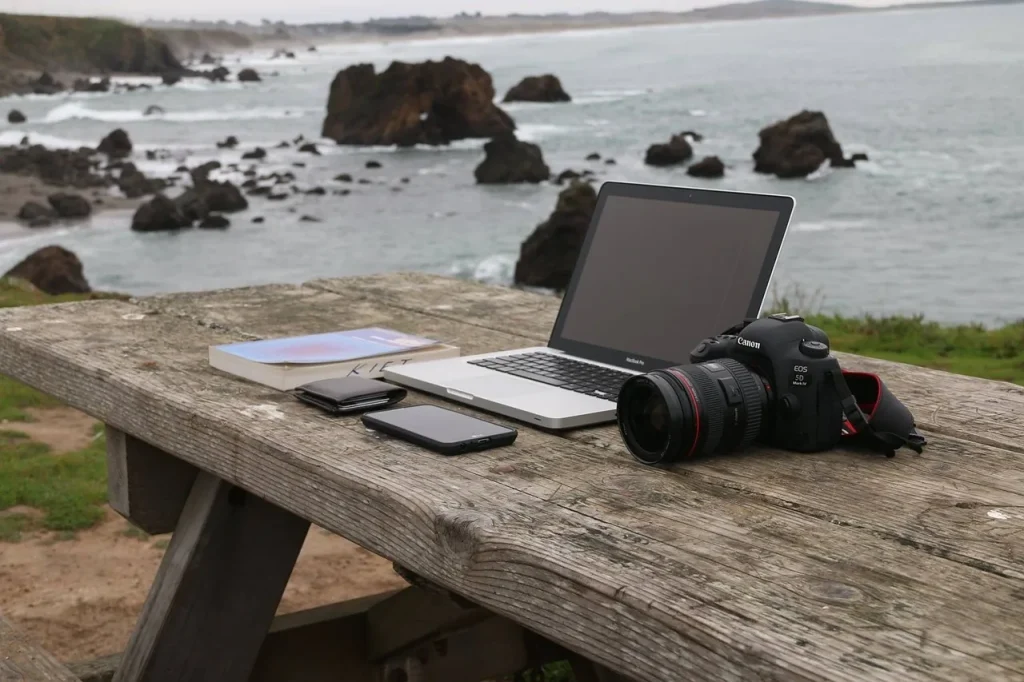
Computer-based music production has become widespread among musicians and producers. The quality of music production depends directly on the power and reliability of the computer you choose.
Unsuitable hardware causes latency, audio dropouts and crashes. Software such as Logic Pro or Ableton Live needs a capable processor, RAM and a fast SSD to load sound libraries and projects without slowing down.
This guide aims to help you make an informed, practical choice. It covers selection criteria, key components, a macOS/Windows/Linux comparison, typical budgets and configurations for different needs (light, intermediate and professional).
In 2025, with Apple M4 chips and Intel and Ryzen 7000+ processors, the focus remains on upgrade options and longevity. The goal is simple: prioritize the quality of your work and everyday reliability over marketing.
For a complete guide and practical examples, follow this link to a dedicated resource.
Guide and examples of computers for
Why choose a laptop for music production today?
Mobility is changing everyday life for musicians who work in the studio and on stage.
Portability, stage and home studio: taking your equipment to rehearsals, classes, residencies and concerts makes creating music easier. With Ableton Live or Logic Pro, the same system can be used to compose, launch stems and manage lighting/video synchronization.
Quiet operation and battery life: quiet fans are essential when recording vocals and instruments in the same room. Battery life lets you work on a train or backstage without risking an interruption during soundcheck.
Stability and durability: choose models with proven audio drivers and a chassis that withstands frequent connections. Macs are often valued for their quiet operation and battery life. PCs offer more flexibility and a better price for comparable hardware.
For production work, a slightly higher investment can reduce stress and improve everyday efficiency.
| Criterion | Main benefit | Effect on your work |
|---|---|---|
| Portability | Easy to transport | More sessions and smoother collaboration |
| Quiet operation & battery life | Better recording conditions | Clean recordings and longer sessions |
| Stability & drivers | Reliability during live shows | Fewer crashes and interruptions |
Laptop for music production: recommended configurations
Choosing a suitable computer starts with defining exactly how you will use it and what you expect from your production setup.
Light, intermediate or professional use: define your needs
Light use — beats, 20 to 30 tracks and moderate VST use. Minimum requirements: a four- or six-core processor, 16 GB of RAM and a 512 GB NVMe SSD. Indicative budget: around €700 to €1,000.
Intermediate use — multitrack projects, demanding VSTs and simultaneous recording. Requirements: a 6- to 12-core processor, 32 GB of RAM, a 1 TB SSD and stable audio connectivity. Budget: around €1,200 to €2,000.
Professional use — orchestral templates, sound design and huge Kontakt libraries. Requirements: a processor with 12 or more cores, 64 GB of RAM, a 1 to 2 TB NVMe SSD and robust cooling. Budget: around €2,500 to €3,500.
Typical workflows and their demands on the computer

Ableton Live is excellent for performance and electronic music: clips, scenes and real-time effects require a capable processor and low latency.
Logic Pro excels at composition and arrangement: large templates and built-in instruments need plenty of memory and fast SSDs.
- Mixing and mastering: demanding plugin suites increase the number of insert instances.
- Session size: count the instruments and plugins used simultaneously; each instance increases processor and RAM usage.
- Audio buffers: reducing their size lowers latency but increases processor load.
Tip: always match your budget to your actual needs. Avoid overspending for light use or buying an underpowered computer if you perform live or aim for professional results.
Essential components for real-time music production
Real-time performance depends on the right balance of processor, memory and storage. Without it, sessions suffer from latency and audio dropouts.
Processor
Choose a processor with strong performance per core and multiple cores (6 to 12 or more). Recommended options include Intel Core i7/i9, AMD Ryzen 7/9 and Apple Silicon M2/M3/M4. Check the Single Thread Rating to gauge responsiveness.
RAM
16 GB is the minimum. 32 GB is recommended for large libraries. For scoring or huge templates, 64 GB can be worthwhile. Look for DDR4 3200 or DDR5 4800+ and dual-channel memory for greater efficiency.
Storage
A 1 to 2 TB NVMe SSD provides fast loading. Ideally, use two volumes: one for the system, DAW and plugins, and another for projects and samples. Keep a mechanical drive or hard drive for backups.
GPU and thermal management
Integrated graphics are sufficient unless you also work with video. Finally, a well-ventilated chassis prevents thermal throttling and maintains stable power throughout long audio sessions.
- Priority: processor > RAM > SSD.
- Cooling = stability.
- Organize your drives to maintain consistent performance on your computer.
“Choosing well-matched components reduces stress during sessions.”
macOS, Windows, Linux: which OS should you use for music production?
Your choice of operating system directly affects reliability and studio workflow.
macOS: ready to use, quiet and optimized for Logic Pro. Apple chips offer unified memory that makes working with large instrument libraries smoother. On the other hand, the price is high, and the RAM and SSD often cannot be replaced. Plan for your needs when buying.
Windows: excellent performance for the price and plenty of flexibility. Broad VST compatibility and a wide choice of hardware. Expect more maintenance, though: drivers and updates need attention, and fan noise may be more noticeable.
Linux: a lightweight, stable option when configured properly. Ubuntu Studio, AV Linux and a real-time kernel can deliver very low latency. However, some software, such as Ableton Live or Logic Pro, does not run natively; using it requires technical skills.
| System | Strengths | Limitations | Common DAWs |
|---|---|---|---|
| macOS | Hardware integration, quiet operation, optimized Logic Pro | Price, limited upgrade options, sometimes restricted VST support | Logic Pro, Live, Cubase, Reaper |
| Windows | Flexibility, extensive plugin catalog, good performance for the price | Maintenance, drivers to monitor, occasional fan noise | Live, Cubase, Studio One, Reaper |
| Linux | Stability, low latency, free to use | Variable hardware compatibility, learning curve | Reaper, Bitwig, Ardour |
“Choose the OS you know and that supports the software you need.”
To explore this choice of a studio computer for music further, consider the software you use and the everyday stability of its audio drivers.
Screen and ergonomics: size, resolution and working comfort
Screen space plays a key role in working efficiently with arrangers and mixers.
When working on the go, choose a 14- to 16-inch screen. This size balances display space, weight and battery life. It lets you edit tracks and automation without straining during long sessions away from the studio.

In the studio, add an external monitor
In the studio, an external monitor of 21 inches or more improves the visibility of timelines, mixers and MIDI editors.
A larger screen reduces the need to switch between windows and makes it easier to compare A/B plugin settings.
Resolution: Full HD, 2K/3K or Retina
Full HD is the recommended minimum. 2K/3K or Retina resolutions increase pixel density and readability.
However, a high-density display may require interface scaling. Check that your DAWs and plugins are compatible before investing.
- Color accuracy: useful if you also produce video or stream.
- Brightness: important when working in a bright environment.
- Ergonomics: a monitor stand, external keyboard and mouse reduce fatigue.
- Connectivity: plan for HDMI, USB-C and DisplayPort according to your computer and monitors.
“A good screen improves the quality of your work and reduces editing mistakes.”
Latency, audio interface and headphones: maintaining a real-time workflow
Keeping audio free of noticeable delay makes a major difference in a real-time session. Latency is the round-trip delay between the input (microphone or instrument) and the output (headphones or monitor). This delay interferes with live playing and recording, especially when following a guide track.

Choosing an interface
Prioritize stable drivers and adjustable buffer sizes. Focusrite and Universal Audio interfaces are often recommended for their reliability and input and output options. Check that the interface has enough inputs and offers direct monitoring.
Headphones and monitoring
Avoid Bluetooth during recording; it adds too much latency. Choose wired headphones or an optimized wireless system (for example, the AIAIAI TMA-2 with transmitter) for recording without noticeable delay.
Direct monitoring reduces perceived latency when recording with Ableton Live or other software. During mixing, delay compensation corrects timing offsets, but it does not help while recording.
| Item | Advantage | Limitation |
|---|---|---|
| USB interface | Easy to set up, good value | Shares the USB bus with other devices |
| Thunderbolt interface | Very low latency, high bandwidth | Less universally compatible, limited number of ports |
| Direct monitoring | Eliminates perceived latency during recording | Less convenient for hearing software effects in real time |
Plan for your bandwidth needs: interfaces and external drives may share the same ports. Use dedicated ports or powered hubs to prevent dropouts on your computer and drive.
To compare models and choose the best audio interface, check drivers, latency, and inputs and outputs for your needs.
Budgets and value: from entry level to professional
Investing according to your needs helps you avoid compromises that hinder music production. This section covers three common price ranges and what they actually provide.

€700 to €1,000: a solid start
Ideal for beginners: a modern processor (i5 or Ryzen 5), 16 GB of RAM and a 512 GB to 1 TB SSD. A dedicated GPU is unnecessary. This level covers beatmaking, sessions of 20 to 30 tracks and a few VSTs.
The recommended minimum for working without frustration: prioritize an NVMe SSD and adequate cooling.
€1,200 to €2,000: lasting comfort
This range offers more headroom: a 12- to 20-core processor (or equivalent multithreaded performance), 32 GB of RAM and a 1 TB NVMe SSD. It also brings better build quality and connectivity. It suits multitrack sessions and real-time effects.
€2,500 to €3,500: premium mobile workstations
For large templates (Kontakt and orchestral libraries) and complex mixes. A MacBook Pro M4 Pro or a premium PC. Up to 64 GB of RAM, fast SSDs and a quiet chassis for long sets or studio sessions.
| Price range | Key components | Intended use | Main advantage |
|---|---|---|---|
| €700 to €1,000 | i5/Ryzen 5, 16 GB, 512 GB to 1 TB SSD | Beatmaking, beginner home studio | Good performance for the price |
| €1,200 to €2,000 | 12- to 20-core processor, 32 GB, 1 TB NVMe | Multitrack work, light live use | Comfort and longevity |
| €2,500 to €3,500 | M4 Pro or premium processor, 32 to 64 GB, fast SSDs | Demanding templates, professional production | Power and quiet operation |
Tip: include the screen and audio interface in your overall budget. Good headphones and a reliable interface do more for productivity than an expensive GPU.
Choose an investment that suits your use and remains useful for several years.
Recommended laptop configurations for music production
Here are practical examples that are easy to compare based on how you work. Each option has been tested and matches a clear usage profile.
Affordable and reliable laptop
Asus Vivobook 16 — Ryzen 7 7730U, 16 GB of RAM and a 1 TB SSD. Ideal for beatmaking and small studios. Good value.
Limitations: RAM is often soldered, and there is no built-in Ethernet port. Suitable for serious projects without huge templates.
Customizable, powerful computer
XMG Core 15 — Intel Core i7-14700HX, 32 GB of DDR5, a fast NVMe SSD and an RTX 4060. Plenty of ports and “Studio” acoustic modes.
Uses: multitrack sessions, sound design and light live work. Shorter battery life and a bulkier chassis.
Apple mobile workstation
14-inch MacBook Pro M4 Pro — 24 GB of unified memory and a 1 TB SSD. Exceptional quiet operation, battery life and performance.
Logic Pro benefits from M-series chips; Ableton Live also runs very well. Excellent performance throughout a session.
Tip: check the ports, keyboard, chassis, noise and after-sales service alongside the specifications to ensure a good everyday experience.
Desktop tower alternatives for the studio: power, quiet operation and upgrade options
A tower often offers the best balance of power and price for a studio that stays in one place.
Why choose a tower? It offers more power at a comparable price, better ventilation and straightforward upgrades. You can add RAM, change the processor or install SSDs and hard drives without replacing the whole computer.
Affordable desktop PC
Typical configuration: Ryzen 5, 16 GB of RAM and a 1 TB SSD. Ideal for standard DAWs and light production. Upgradeable to 64 GB and expandable with a second drive if needed.
Versatile configuration
Midrange: Ryzen 7, 32 GB of RAM, NVMe storage and a 2 TB HDD. A quiet case is recommended to reduce noise during recording. Ideal for organizing libraries and backups.
Professional workstation
Premium: i7-14700K, 64 GB of DDR5, several SSDs (1 TB and 2 TB) and a 4 TB HDD. A motherboard with plenty of ports for interfaces and fast drives.
- Tip: add an uninterruptible power supply and a surge-protected power strip to protect your investment.
- This option suits a fixed studio setup with external monitors and a full set of peripherals.
“A thoughtfully configured tower extends the studio’s useful life and improves its reliability.”
Used, refurbished and long-lasting computers: choosing well for the long term
The refurbished market offers good deals, but you need to know what to check. A sound purchase starts with the hardware’s age: favor a computer released less than 3 years ago to get components that are still fast and modern ports.
Minimum criteria: an Intel i5/i7 or Ryzen 7 processor, NVMe SSD, 16 to 32 GB of RAM and a battery in good condition. These cover the minimum needed for stable sessions.
Be cautious with older Intel Macs: they often offer lower performance and limited compatibility with the latest versions of Logic Pro. On Apple Silicon models (M1/M2/M3/M4), the RAM and SSD are soldered and cannot be replaced.
Upgrade options: PCs and Apple Silicon
A PC may let you increase RAM and storage later. With an M-series Mac, you need to plan for your needs when you buy it. For use over 5 to 10 years, size your SSD and RAM according to your plugins and workload.
“It all depends on how you work: one virtual instrument does not have the same requirements as an orchestral template.”
Optimizations and good practices for stable performance
Practical settings help keep performance consistent across your projects. They reduce interruptions and make everyday work easier.
Organizing your drives
Separate your volumes: use one SSD for the system and software, and a second drive for projects, samples and libraries. This arrangement speeds up loading and avoids access conflicts.
Updates, drivers and security
Apply security patches and use stable audio drivers, but avoid major updates in the middle of a project. Test upgrades first on a secondary computer before installing them on your main one.
Do not overload the computer
Install only essential software and remove outdated trial versions. Avoid pirated versions: they undermine stability and can introduce malware.
- Backups: system clones and regular backups to an external drive or NAS.
- Optimization: enable high-performance mode, disable USB sleep and close background applications.
- Monitoring: watch latency and processor load; adjust the buffer size for each stage (smaller during recording, larger when mixing).
“Simple drive organization and good software maintenance prevent most production problems.”
Conclusion
As this article ends, remember that a well-chosen computer eases creative work and speeds up music production.
It all depends on how you work: define your needs, plan ahead and set a sensible budget. Both Macs and PCs can deliver professional results when you know your setup and tools.
Prioritize a capable processor, enough RAM, a well-organized NVMe SSD and a low-latency audio interface. Think ahead several years: the SSD and memory should remain suitable for future sound libraries.
Take the next step: define your needs, compare the hardware and choose a balanced, reliable configuration at the best price. A good choice will save you time during sessions.