
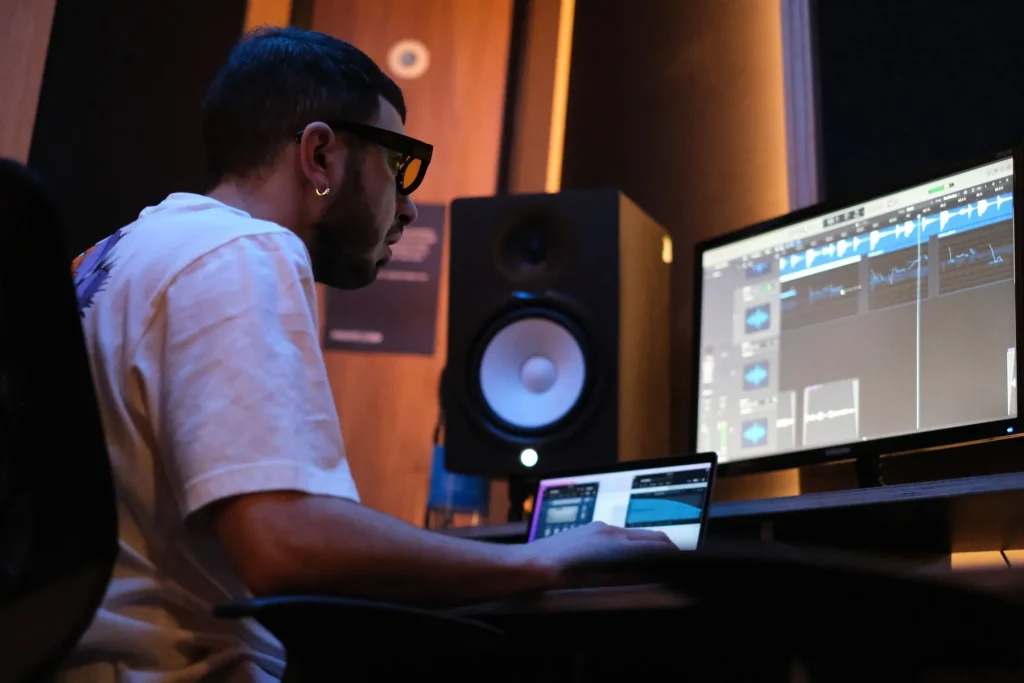
You have a simple but important question: which computer should you choose to make music without spending too much or ending up with an underpowered machine? This guide helps you make your choice based on how you work, rather than the logo.
The answer depends mainly on how well you know the operating system and software. For computer-based music production, a Mac stands out for its build quality and quiet operation, especially with an Apple Silicon M4 chip. A PC offers flexibility and good value for money. Linux appeals to people who are comfortable with technology.
Comfort and components matter: good single-core performance, enough memory, an NVMe SSD, and suitable connections. The display affects comfort, and laptops such as the Asus Vivobook, along with XMG workstations and MacBook Pros, show that there are configurations for every budget.
This article summarizes the essential criteria for computer-based music production today. The goal is to help you find a machine that gives you room to be creative without sacrificing quality or mobility.
Understanding your music production needs today: uses, budget, experience, and constraints
Before buying, define exactly what you currently do in music and how you work. Note the number of tracks, types of instruments, real-time recording needs, and your goals for releasing music or performing live.
For computer-based music production, aim for a balanced configuration: a minimum of 8 GB of RAM, 16 GB recommended, and 32 GB for large sample libraries. Favor two RAM modules in dual-channel mode and DDR4 memory at 3,200 MHz or DDR5 at 4,800 MHz.
- Processor: single-core performance matters; look for 6 to 8 cores to distribute effects and tracks.
- Storage: an NVMe SSD of at least 1 TB; plan for 2 TB or a second drive for large sample libraries.
- Mobility or studio: choose a laptop if you travel and a desktop tower if you prioritize upgrades and quiet operation.
Set your current budget: €700 to €1,000 for the essentials (CPU, RAM, and SSD), €1,200 to €1,800 for a capable machine, and > €2,500 for a high-end workstation. Anticipate how your needs may change so you do not have to buy another computer in six months.
Music production on Mac, Windows, or Linux: which should you choose?
Your software and workflow come first. Check the list of DAWs and plugins you cannot do without. It will guide your choice of operating system and help you avoid an unsuitable machine.
macOS — stability, quiet operation, and Apple Silicon
Strengths: often very quiet machines, excellent battery life, and Retina displays on recent laptops.
Apple Silicon chips (M4) offer considerable power for audio production. Bear in mind that RAM and storage cannot be upgraded. Each new macOS version may require you to check plugin compatibility.
Windows — performance, flexibility, and value for money
Strengths: a wide choice of computers, easy upgrades, and a better price-to-performance ratio.
Compatibility with software and VSTs is generally broadest on Windows. On the other hand, laptop quality varies, and maintenance may require more attention.
Linux — freedom, real-time kernels, and practical limitations
Strengths: dedicated distributions, real-time kernels, and compatible DAWs (Ardour, Reaper, Bitwig…).
Native plugins are available, but some proprietary tools require Wine or yabridge. Hardware compatibility can be unpredictable: check your audio interface before committing.

| System | Key advantage | Main limitation | Best if |
|---|---|---|---|
| macOS | Integration, quiet operation, Retina display | High price; RAM and SSD cannot be upgraded | You use Logic or want simplicity |
| Windows | Upgrade options, broad software compatibility | Variable quality; laptops can be noisy | You want good performance at the best price |
| Linux | Freedom, real-time kernel, lower latency | Limited plugin and DAW compatibility | You enjoy tinkering and optimizing |
In practice, the best system is the one that runs your projects smoothly. Also consider the display, interfaces, and controllers you already own. The right answer may be different depending on your priorities.
The components that make a difference in music production (real-time work and performance)
Hardware choices often determine whether a session runs smoothly or becomes frustrating. Focus on the components that handle the real-time audio workload: processor, memory, and storage.
Processor: core count and single-core performance
The processor is essential for running effects and maintaining playback without dropouts. Aim for excellent single-core performance and at least 6 to 8 cores.
Hybrid architectures (12th- and 13th-generation Intel, Ryzen 7000, Apple Silicon) distribute the workload more effectively and maintain responsiveness.
RAM
Memory helps keep large projects stable. 8 GB is the minimum, 16 GB offers a good balance, and 32 GB suits large libraries.
Favor two matching modules in dual-channel mode and speeds of 3,200 to 4,800 MHz for tangible gains.
Storage
A fast NVMe SSD significantly reduces loading times. Ideally, put the system and samples on two separate drives.
Plan for at least 1 to 2 TB. If you keep a hard drive for archiving, reserve it for that secondary purpose.
Graphics card and connectivity
An integrated graphics card is enough for audio. An entry-level GPU is mainly useful if you also work with video.
Finally, check the ports: at least two USB 3 or USB-C ports, an HDMI output, an Ethernet port, and a headphone or microphone jack. A reliable hub can make up for missing ports.
In short: a balanced machine avoids bottlenecks. Prioritize the processor, memory, and drive to ensure good performance during sessions.
Laptop or desktop tower for computer-based music production
The type of computer directly affects your working comfort and the lifespan of your equipment.

Mobility, battery life, and quiet operation: the benefits of laptops
A laptop is appealing because it is lightweight and runs on battery power. It lets you work at friends’ homes, record live takes, and produce outside the studio.
Key points: easy transport, quiet operation on some models (such as ultraportables), and a built-in display. Laptops cover 90% of common uses.
Power, cooling, and upgrade options: the advantages of a desktop workstation
A desktop workstation offers more power for the same price. You can replace certain components (RAM, SSD, processor), and its cooling remains manageable under heavy workloads over time.
Advantages: better cooling, longer lifespan, the option to use several displays, and easier maintenance.
“Choose a laptop for the stage; for long, demanding sessions, a tower remains the best investment.”
- If you perform live, a laptop is almost essential.
- For a fixed studio, a tower makes better use of your budget over time.
- A small, compact workstation can sometimes serve both purposes.
In short, base your choice on your daily work: travel or long production sessions. This will help you choose the right machine for music production.
Laptops: which configuration suits your price range?
Choosing the right machine starts with defining your needs for mobility and power, as well as your budget. Laptops fall into three broad price ranges. Each configuration balances processor, memory, and storage.

Entry level
A simple configuration is enough to get started: a Ryzen 5 or 7 or Core i5 processor, 8 to 16 GB of RAM, and a 512 GB to 1 TB SSD.
Example: the Asus Vivobook 16 (Ryzen 7 7730U, 16 GB, 1 TB). Its 16-inch display is comfortable and its price is appealing, but its RAM is often soldered and it has few ports.
Midrange
Aim for 16 to 32 GB of RAM, an NVMe SSD, and a faster processor. A gaming PC or powerful ultraportable handles your sounds and plugins better.
The XMG Core 15 (i7-14700HX, 32 GB of DDR5, RTX 4060) is an example of a machine capable of handling demanding sessions.
High end
For demanding projects, 24 to 32 GB of RAM or more, a 1 to 2 TB SSD, and a 120 Hz display improve comfort over the long term.
“A high-end machine combines quiet operation, power, and a display that reduces fatigue.”
The 14-inch MacBook Pro with M4 Pro remains a benchmark, despite its high price and limited number of ports.
Desktop PC towers for the studio: capable, upgradeable configurations
Desktop PC towers provide a reliable foundation for long sessions and make upgrades easier. They deliver stable performance while remaining repairable and adaptable over time.

Modest budget: a solid start
LDLC PC Start Studio (around €1,000): Ryzen 5 5600G, 16 GB of DDR4, a 1 TB NVMe SSD, and a quiet case. It is an ideal workstation for getting started.
Limitations: no dedicated GPU or second drive. Memory can still be expanded to 64 GB.
Versatile and powerful
LDLC PC Premium Studio (around €1,750): Ryzen 7 7700, 32 GB of DDR5, a 1 TB SSD and 2 TB hard drive, and a Fractal case. It is better suited to large project templates and sample libraries.
Bear in mind that it has no integrated graphics or built-in Wi-Fi.
Custom professional workstation
LDLC PC Pro Studio (around €2,600): i7-14700K, 64 GB of DDR5, two SSDs and a 4 TB hard drive, a Meshify 2 case, and a high-end motherboard with Wi-Fi, Bluetooth, and USB-C.
This machine prioritizes quiet operation, cooling, and storage capacity for very demanding projects.
- The absence of a dedicated graphics card does not hinder audio work; add one if you work with video.
- A second hard drive or SSD makes backups and organization easier.
- Consider a motherboard with several M.2 slots and SATA ports so you can upgrade later.
For advice on a video editing computer configuration, the same storage and cooling principles apply.
Can you make music with a refurbished or older computer?
A refurbished computer can provide an excellent foundation for audio work if you follow a few simple rules. The main criteria are its components and the condition of the system.
What to look for
Favor a machine less than three years old with a recent processor (i5, i7, or Ryzen 7), 16 to 32 GB of RAM, and an SSD. These components help ensure a smooth experience from day one.
Limitations to avoid
A mechanical hard drive, less than 8 GB of RAM, or an excessively old device can cause slowdowns and crashes during demanding sessions.
- Test the configuration by installing a trial version of your DAW and loading a few plugins.
- Check performance benchmarks such as PassMark to assess the processor, drive, and memory.
- On macOS, favor recent chips: an older Intel Mac may be less suitable for the latest versions of Logic Pro.
In short: a recent, well-equipped refurbished computer can offer good value for money, but set minimum specifications and test the machine with a real project before buying. For more practical information, read our guide to choosing a music production computer.
Music production on Linux: possibilities, software, and points to watch
For anyone who enjoys optimizing a machine, a real-time kernel opens up interesting possibilities for audio.
Strengths: distributions such as Ubuntu Studio, AV Linux, and KXStudio provide a stable foundation for installing your software and configuring audio. Reaper, Bitwig, Ardour, Mixbus, Zrythm, and LMMS run natively.
Plugins, drivers, and compatibility
The selection of native plugins is growing (Vital, Surge XT, U-He, Audio Damage). Some proprietary tools require Wine or yabridge.
Always check compatibility with your USB interface and MIDI control surfaces: it varies by device.
Latency and optimization
With a properly configured real-time kernel and JACK, latency falls and direct recording stays smooth.
“Test Reaper under real working conditions: stability, latency, and sound compatibility will tell you whether this option is viable.”
| Component | Advantage | Limitation |
|---|---|---|
| Distributions | Free, customizable | Require technical skills |
| Native DAWs | Reaper, Ardour, Bitwig | Not all commercial software is available |
| Plugins | Vital, U-He, Surge XT | Compatibility needs checking |
If you also work with video, check codec support and your workflow. By testing your computer with real projects, you can assess latency times and the machine’s stability.
Peripherals and interfaces: quality, latency, and working comfort
The right peripherals make a session more productive and precise. They reduce latency, preserve dynamics, and improve the final result.
Audio interface: latency, inputs and outputs, and conversion
Choose an audio interface that minimizes latency and provides the inputs and outputs your microphones and instruments require.
The quality of the preamps and converters affects your recordings. Focusrite and Universal Audio remain reliable options depending on your budget.
Headphones and speakers: accuracy and connectivity
Use a wired connection for monitoring to avoid Bluetooth latency. If you want wireless listening, the AIAIAI TMA-2 with an RF transmitter limits delays.
Studio monitors need an acoustically treated room and a quality interface; a well-matched setup matters more than any single high-end component.
Displays and ergonomics: size, resolution, and hubs
A good display makes work easier. Aim for a 24- to 27-inch display at 1080p or 1440p so you can see your tracks without constantly zooming.
Two displays let you separate arrangement and mixing tasks. If your computer lacks ports, add a reliable USB-C hub and consider Ethernet for backups.
- Choose an interface that reduces latency and provides suitable inputs and outputs.
- Use short, neatly arranged cables to minimize interference.
- A practical example: the Logitech M510 speeds up repetitive actions in the DAW.
- To choose a music production audio interface, check compatibility and drivers before buying.
Take action: a selection method and configuration checklist
Move from uncertainty to action by listing your real projects and their constraints. Note the number of tracks, synthesizers, effects, real-time needs, and essential plugins. Use trial versions to test your tools and confirm compatibility.
Assess projects, plugins, tracks, and real-time needs
Make a simple inventory: live sessions, large project templates, and sample libraries. Open a test project and assess processor performance using PassMark or cpubenchmark.net.
Prioritize the processor, RAM, SSD, and connectivity, then the display
Priority 1: a processor with good single-core performance.
Priority 2: at least 16 GB of memory, or 32 GB for large libraries.
Priority 3: a 1 to 2 TB NVMe SSD and a second drive for samples.
- Check the ports: USB, HDMI, Ethernet, and an audio jack; plan for a USB-C hub if needed.
- Measure real-world performance beyond marketing claims.
- Adjust the DAW’s buffer size to balance latency and stability.
- Record plugin versions and plan for backups and an uninterruptible power supply.
“Make your final choice based on budget, performance, and portability, while keeping your workflow in mind.”
Conclusion
Conclusion
The best result depends on balancing your needs, budget, and components. Prioritize the processor, memory, and NVMe drive, then choose an audio interface and display that suit your needs.
High-end computers offer quiet operation and integration, PCs provide cost-effective upgrade options, and open-source systems suit knowledgeable users who enjoy optimizing their machines. Test your plugins and software on the platform you are considering before switching.
In short: choose the configuration that lets you produce music today, with room for future needs. Invest in the quality of the machine, interface, and displays for lasting performance.